
Cart is empty
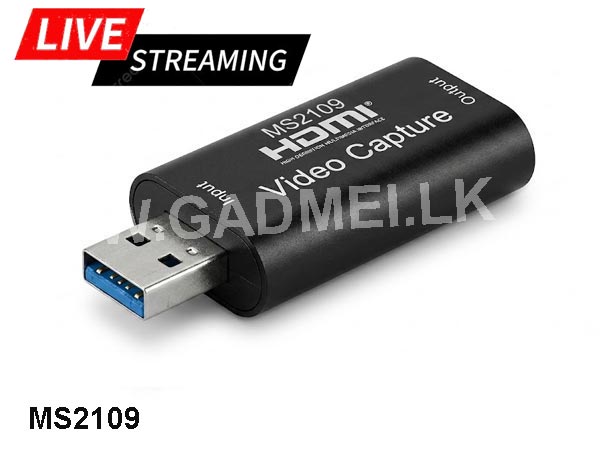

VIDEO CAPTURE 1080P-MS2109
Special Price LKR 4500.00
Regular Price:
- Islandwide Delivery Available
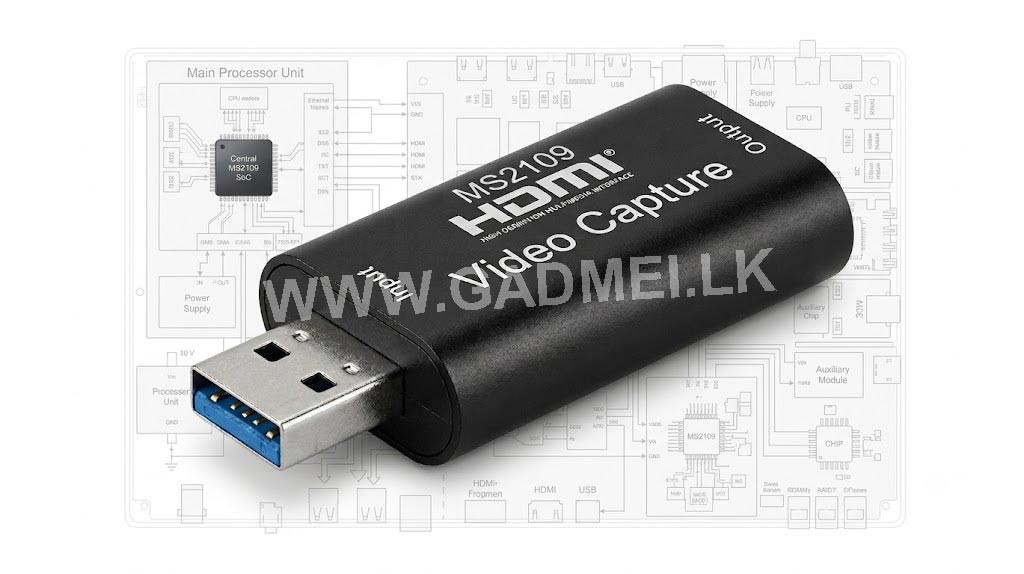
HDTV HDMI to USB 2.0 Video Capture Card—MacroSilicon MS2109 Chipset
Upgrade your setup with this compact HDMI to USB video capture card, powered by the reliable MacroSilicon MS2109 processor.
Designed for smooth, low-latency video transmission, this plug-and-play dongle allows you to easily connect your DSLR, gaming console, or laptop directly to your PC or Mac for live streaming, recording, and video conferencing.
-
Original MS2109 Chipset: Delivers stable, reliable video encoding and broad software compatibility.
-
4K Input Support: Accepts HDMI inputs up to 4K @ 30Hz (downscaled to crisp 1080p output).
-
Smooth 1080p Recording: Supports up to 1080p @ 30 fps (MJPEG) output format via USB 2.0.
-
Driver-Free Plug & Play: Standard UVC / UAC protocol—works instantly with OBS Studio, Zoom, vMix, VLC, and Skype without installing drivers.
-
Compact & Durable: Lightweight aluminum alloy casing provides efficient heat dissipation during long streaming sessions.
| Chipset | MacroSilicon MS2109 |
| Host Interface | USB 2.0 Type-A (4-pin) |
| Input Interface | HDMI 1.4b |
| Input Resolution | Up to 3840×2160 @ 30Hz (4K) |
| Output Resolution | Up to 1920×1080 @ 30Hz (1080p) / 720p @ 60Hz |
| Video Output Format | YUY2 (low frame rate) / MJPEG (up to 1080p@30fps) |
| Audio Format | L-PCM Audio |
| Software Compatibility | OBS Studio, Streamlabs, vMix, Zoom, VLC, QuickTime |
| OS Compatibility | Windows, macOS, Android, Linux |
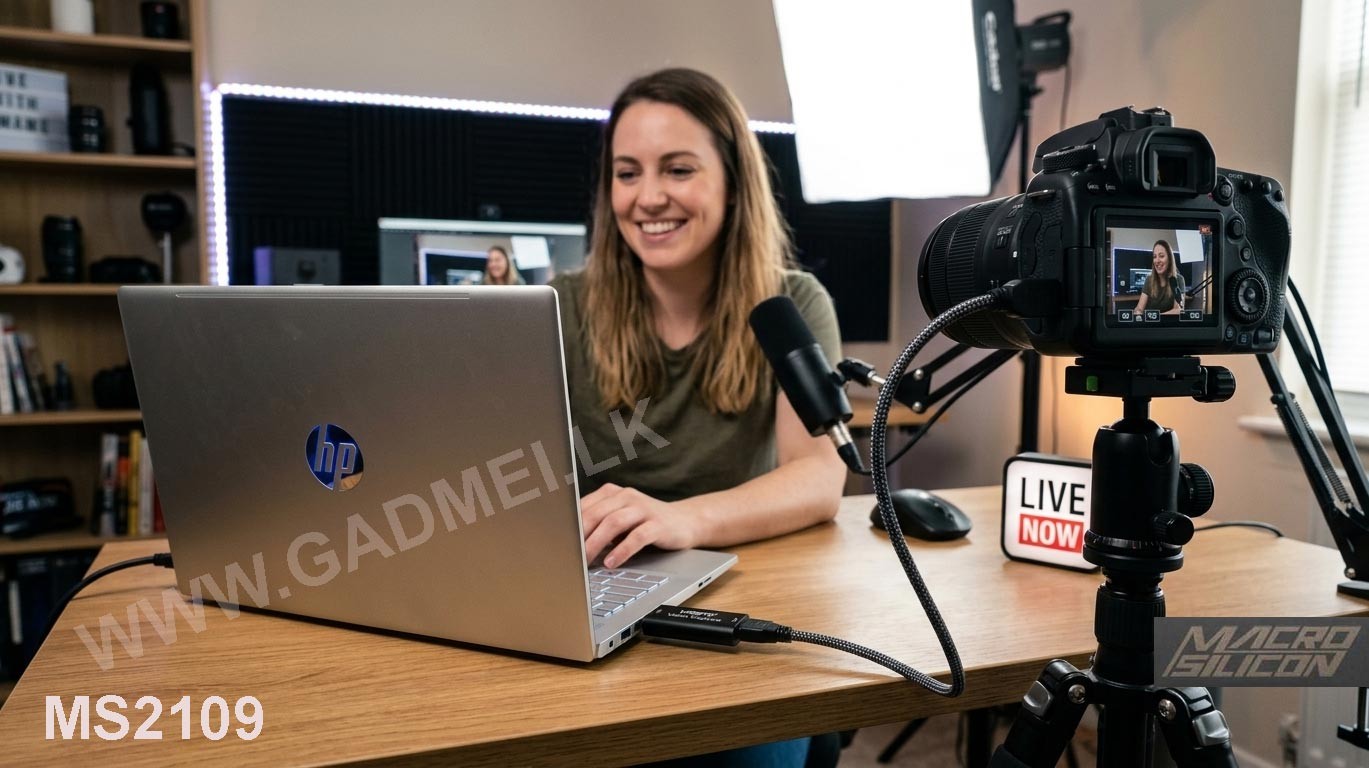
How to Connect & Use the MS2109 HDMI Video Capture Card
Setting up the MS2109 Video Capture Card is completely driver-free and takes less than two minutes.
Step 1: Connect the Hardware
-
Plug the capture card into your PC/laptop:
Insert the USB plug of the capture card directly into an available USB port on your computer.
-
Connect the HDMI Cable:
Connect one end of an HDMI cable to your video source (DSLR camera, gaming console, laptop, or camcorder) and plug the other end into the HDMI input port of the capture card.
Step 2: Configure in OBS Studio (Recommended Free Software)
-
Open OBS Studio on your computer.
-
Under the Sources box at the bottom, click the
+(Add) icon and select Video Capture Device. -
Name the device (e.g., Capture Card) and click OK.
-
In the settings window that pops up, set the following:
-
Device: Select FHD Camera (or USB Video).
-
Resolution/FPS Type: Select Custom.
-
Resolution: Select 1920x1080.
-
FPS: Select 30 (or Match Output FPS).
-
Video Format: Select MJPEG (Crucial for smooth 1080p performance on the MS2109 chipset).
-
-
Click OK.
Step 3: Enable Audio Input
-
In the same Video Capture Device properties window, scroll down to the bottom.
-
Check Use custom audio device.
-
Under Audio Device, select Digital Audio Interface (USB Digital Audio) or FHD Camera.
-
Click OK.
Step 4: Use for Zoom / Microsoft Teams / Google Meet
-
Open your video conferencing application.
-
Go to Settings Video / Audio.
-
Under Camera, select FHD Camera (or USB Video).
-
Under Microphone/Audio Input, select USB Digital Audio.
Pro Tips for Best Performance
-
MJPEG Mode: Always ensure your streaming software is set to MJPEG video format when using 1080p. Selecting uncompressed YUY2 at 1080p will restrict the frame rate to around 5fps due to USB 2.0 bandwidth limits.
-
No External Power Required: This device draws power directly from the USB port—no external power adapter or extra charging cables are needed.
Download VIDEO_CAPTURE_1080P_MS2109_Product_Guide
Download Product_Guide_and_OBS_Setup.pdf
Record and stream high-definition video with ease! Powered by the MS2109 chipset, this HDMI capture card accepts up to 4K @ 30Hz input and outputs smooth 1080p @ 30Hz video to your computer. Perfect for OBS streaming, online classes, DSLR webcam conversion, and console gaming setups (PS4, Switch, Xbox). Simple plug-and-play operation for Windows, macOS, and Android.